Valorant FPS Boost Guide 2026: The Unreal Engine 5 Performance Meta
In 2026, Valorant has successfully transitioned to a unified Unreal Engine 5 architecture. While the visual clarity and lighting have improved, the hardware cost for a stable 360Hz or 540Hz experience has increased significantly. This guide isn’t about “cleaning your recycling bin”—it’s a technical deep-dive into system latency, CPU cache utilization, and engine-level optimizations.
1. The 2026 Hardware Reality: CPU vs. GPU
In 2026, the biggest mistake players make is overestimating the GPU’s role in Valorant. This game remains a CPU-bound tactical shooter. Even with a modern graphics card, your frame-time stability is entirely dependent on how fast your processor can handle draw calls and Vanguard security heartbeats.
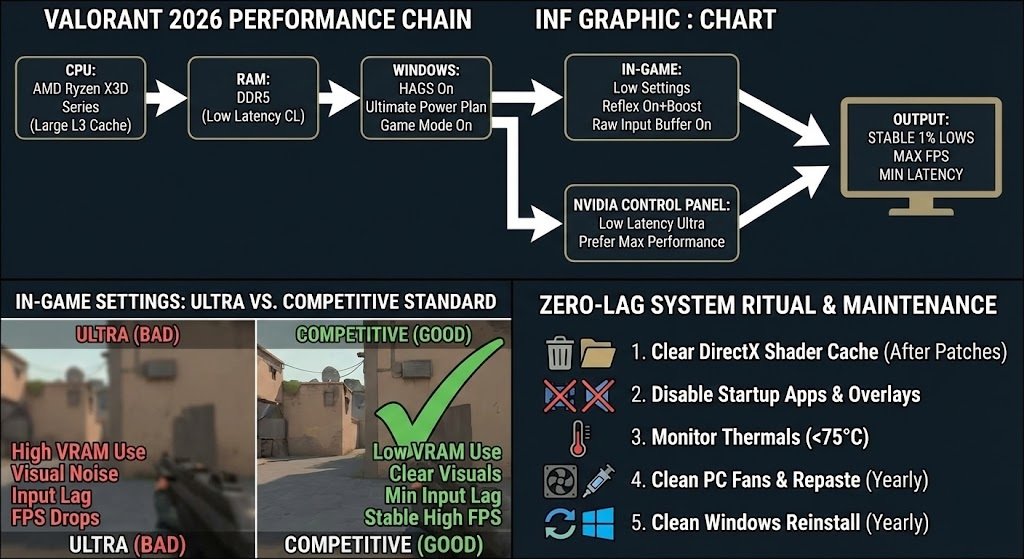
If you are building or upgrading, the AMD Ryzen X3D series (specifically the 7000 or 9000 series) is the undisputed champion. Valorant’s engine thrives on large L3 caches, which significantly stabilize your 1% Lows. High average FPS is useless if your frames drop to 120 during a 5-man site execute.
RAM Latency (DDR5)We are now firmly in the DDR5 era. For Valorant, raw frequency (MT/s) matters less than First Word Latency. Aim for 6000MHz or 6400MHz with the lowest possible CL (CAS Latency) timing. Sub-timings specifically affect the communication between Riot Vanguard and the game engine.
2. Windows System-Level Optimizations
Windows 11 and the early versions of Windows 12 have heavy background telemetry. Your goal is to strip away the “noise” so the CPU can focus on frame-time consistency.
Hardware-Accelerated GPU Scheduling (HAGS)
In the 2026 Windows builds, HAGS should be ON. Previously, it caused stutters, but with the latest NVIDIA RTX 40 and 50-series drivers, HAGS is required to properly utilize NVIDIA Reflex.
- Go to Settings > System > Display > Graphics.
- Change default graphics settings.
- Toggle Hardware-accelerated GPU scheduling to On.
Game Mode & Power Plan
Contrary to old advice, leave Game Mode ON. It now effectively suppresses Windows Update and background task priority better than manual Registry tweaks.
Power Plan: Use the “Ultimate Performance” plan. If it’s hidden, open PowerShell as Admin and paste:
3. In-Game Settings: The Competitive Standard
If you want the highest FPS and lowest input lag, “Ultra” settings are your enemy. Even with an RTX 5090, pros play on Low for visual clarity.
- Multithreaded Rendering: Always ON. This is the single most important setting for modern CPUs.
- Material/Texture/Detail Quality: Low. This reduces the VRAM load and keeps the visual “noise” down, making it easier to spot an enemy head against a flat wall.
- V-Sync: OFF. V-sync introduces massive input lag.
- Anti-Aliasing: MSAA 2x or 4x. While “None” gives more FPS, MSAA helps remove the “shimmering” on edge textures, which can be distracting at high speeds.
- Anisotropic Filtering: 2x or 4x.
- Experimental Sharpness: OFF. It uses extra GPU cycles for something that can be handled better by your monitor’s built-in sharpness.
4. Addressing the Latency Chain
FPS is only half the battle. System Latency (the time between a mouse click and a pixel changing) is what actually wins duels.
NVIDIA Reflex Low Latency
Set this to On + Boost. The “Boost” prevents the GPU from entering power-saving clock states, keeping it ready to render the next frame immediately.
Raw Input Buffer
ON. This setting was introduced to help with high-polling rate mice (2000Hz, 4000Hz, or 8000Hz). In 2026, most gaming mice are at least 4000Hz. Turning this ON allows the game to pull mouse data directly from the hardware, bypassing the Windows pointer processing layer.
5. Unreal Engine 5 Specific Tweaks (Config Files)
Since Valorant updated its backend architecture, some settings aren’t available in the UI but can be tweaked in the GameUserSettings.ini file.
- Press Win + R and type
%localappdata%. - Navigate to
VALORANT\Saved\Config\[Your-Account-Folder]\Windows\GameUserSettings.ini. - Look for sg.ViewDistanceQuality. Set this to
0. It doesn’t affect player visibility, only decorative environmental assets. - Look for sg.ShadowQuality. Set to
0.
6. Vanguard & Bloatware Management
Riot Vanguard is a kernel-level driver. It is always running. To minimize its impact:
- Disable Overlay Software: Discord, Steam, and even the NVIDIA Overlay take a small bite out of your 1% lows. Turn off the “In-Game Overlay” in Discord settings.
- MPO (Multi-Plane Overlay) Fix: If you experience “alt-tab” stutters or flickering, use the NVIDIA MPO Tool to disable Multi-Plane Overlay. It’s a common Windows bug that interferes with how games render on top of the desktop.
7. Thermal Management & Thermal Throttling
In 2026, hardware runs hotter than ever. If your FPS is high for 10 minutes and then drops, you are thermal throttling.
- Undervolting: Using tools like MSI Afterburner (for GPU) or PBO (Precision Boost Overdrive) for AMD CPUs can lower your temperatures by 10-15°C without losing clock speed. This keeps your FPS stable for 4-hour gaming sessions.
- Fan Curves: Set your CPU fan to hit 100% at 75°C. It’s loud, but it prevents the “down-clocking” that happens when the CPU tries to save itself from heat.
8. Summary Checklist for Maximum Performance
| Category | Action Item |
|---|---|
| Hardware | Prioritize X3D CPUs and dual-channel DDR5 RAM. |
| Windows | Enable HAGS, Ultimate Power Plan, and Game Mode. |
| In-Game | Low settings, Multithreaded Rendering ON, Reflex On + Boost. |
| Input | Raw Input Buffer ON, Mouse Polling at 4000Hz+. |
| Maintenance | Clean out your PC fans and check your thermal paste every 12 months. |
FAQ: High-Frequency Gaming in 2026
Q: Should I cap my FPS?
A: If you have a 360Hz monitor, cap your FPS at 357 (3 frames below the refresh rate) if you use G-Sync. If you don’t use G-Sync, leave it Uncapped to get the lowest possible input lag, even if the monitor can’t show all the frames.
Q: Does Windows 12 improve FPS?
A: Early benchmarks show Windows 12 has better scheduler efficiency for hybrid CPUs (Intel’s P-cores and E-cores), but for Valorant, the difference is within a 2% margin.
Q: Why did my FPS drop after the latest patch?
A: Every time Riot updates the map pool or adds a new Agent with complex utility (like Vyse), the draw-call count increases. This is a permanent tax on your CPU. If a patch kills your FPS, the first step is always clearing your Shader Cache in the NVIDIA/AMD control panel.
Final Pro Tip: Clean Reinstalls
If you have been playing Valorant on the same Windows installation for 2+ years, your registry is likely cluttered. A fresh install of Windows 11/12 can often give you a 15-20% boost in 1% lows simply by removing the debris of old software and drivers.
Important Note
This guide is an informational overview based on common competitive settings and general PC‑optimization practices, not official Riot documentation. System‑level changes such as power‑plan adjustments, HAGS toggling, MPO tools, undervolting, config edits, and operating‑system reinstalls can behave differently on each PC and may cause instability or data loss if applied incorrectly. Always back up important data, change one setting at a time, and prioritize a stable, reliable system over chasing small, theoretical FPS gains. We are not responsible for your data loss. this is just a guide always take backups.

Hi, I’m Pooja—Gamer, Creator, and Performance Tool Builder. After grinding in Valorant, I realized competitive players needed clean, data-driven calculators without the heavy ads. I created BattlePooja to bridge the gap between technical hardware optimization and in-game mechanical skill.