Valorant Low End PC Settings
There is nothing worse than swinging a corner, spotting an enemy, and freezing for half a second. By the time your PC catches up, you’re already spectating your teammates.
Valorant is designed to run on a toaster, but if you are playing on an older laptop or a desktop with integrated graphics, “running” isn’t enough. You need consistent frames to compete. A drop from 60 FPS to 30 FPS messes up your spray control and increases input lag.
This guide isn’t about making the game look pretty. It’s about stripping away everything that eats resources so your CPU can focus on one thing: registering your headshots. Here are the best settings for low-end PCs in 2026.
- Resolution: Lower this first. Try 1280×720 or 1024×768 (True 4:3).
- Multithreaded Rendering: Turn this ON if you have 4+ cores. Crucial.
- V-Sync: Always OFF. It causes massive input lag.
- Nvidia Reflex: Set to On + Boost if available.
- Use this tool:. It shows the setting details per HW
1. The “Golden” Graphics Settings (In-Game)
Open Valorant, go to Settings > Video > General. This is where 90% of your performance gains will come from.
Display Mode: Fullscreen
Never play on “Windowed Fullscreen” or “Windowed.” Windows diverts resources to background apps in these modes. Fullscreen forces your GPU to prioritize Valorant exclusively.
Resolution: The “Stretched” Advantage
If you are struggling to hit 60 FPS on 1920×1080 (1080p), you need to drop your resolution. This drastically reduces the number of pixels your GPU has to render.
- Moderate Boost: 1280 x 720 (16:9) – Keeps the game looking normal but blurry.
- Maximum Boost: 1024 x 768 (4:3) – This is the “CS:GO” stretched resolution.
Note on Stretched Res: Unlike CS:GO, 4:3 in Valorant does not make enemy heads wider (hitboxes stay the same). However, it makes the crosshair and UI larger, and most importantly, it can give you a +20-30 FPS boost on potato PCs.
2. Graphics Quality Tab (The FPS Killers)
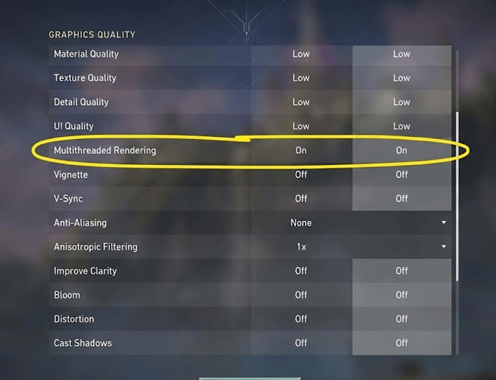
Go to the Graphics Quality tab. Set everything as follows for maximum performance:
| Setting | Value | Why? |
|---|---|---|
| Multithreaded Rendering | ON | The single most important setting. Valorant is CPU-bound. If you have 4+ cores (most modern CPUs), this doubles your FPS. |
| Material Quality | Low | Reduces texture detail on walls/guns. |
| Texture Quality | Low | Saves VRAM (Video Memory). |
| Detail Quality | Low | Removes unnecessary foliage and clutter (e.g., ivy on walls on Ascent). Improves visibility. |
| UI Quality | Low | Minimal impact, but every frame counts. |
| Vignette | Off | Darkens screen edges. Useless for competitive play. |
| V-Sync | OFF | Adds massive input delay. Never turn this on. |
| Anti-Aliasing | None / MSAA 2x | “None” gives max FPS but jagged edges. MSAA 2x is a good balance if you can’t see enemies clearly. |
| Anisotropic Filtering | 1x | Makes textures sharp at angles. 1x is best for low-end PCs. |
| Improve Clarity | Off | Increases contrast but costs performance. Turn off. |
| Bloom / Distortion / Shadows | Off | Distortion creates heat waves around explosions. Turn it off to see clearly. |
3. Windows Optimization (The Hidden Boosters)
Sometimes the problem isn’t the game; it’s Windows trying to save power.
1. Turn Off “Fullscreen Optimizations”
This is a Windows feature that tries to overlay hybrid visual modes on fullscreen games. It often causes micro-stutters in Valorant.
- Navigate to where Valorant is installed (usually
C:\Riot Games\VALORANT\live\ShooterGame\Binaries\Win64). - Find VALORANT-Win64-Shipping.exe.
- Right-click > Properties > Compatibility tab.
- Check the box: Disable fullscreen optimizations.
- Click Apply.
2. High Performance Power Plan
If you are on a laptop, this is mandatory. Windows defaults to “Balanced” mode, which throttles your CPU to save battery.
- Press Windows Key, type “Edit Power Plan”.
- Click “Power Options” in the address bar.
- Select High Performance.
3. Discord Overlay
The Discord overlay is convenient, but it eats VRAM. If you have less than 4GB of VRAM (or integrated graphics), turn it off.
- Go to Discord Settings > Game Overlay.
- Toggle Enable in-game overlay to OFF.
4. Stats & Monitoring: Are You CPU or GPU Bound?
To fix lag, you need to know what is bottling your system. Go to Video > Stats in Valorant and turn on “Text Only” for:
- Client FPS
- CPU Render Time
- GPU Render Time
How to read it:
- If GPU Time is higher (e.g., 15ms), your graphics card is struggling. Solution: Lower Resolution.
- If CPU Time is higher, your processor is struggling. Solution: Close background apps (Chrome, Spotify) and ensure Multithreaded Rendering is ON.
Frequently Asked Questions
Does “Game Mode” in Windows help?
Yes. In Windows 10/11, “Game Mode” has improved significantly. It prevents Windows Update from running in the background and deprioritizes other background processes. Keep it ON.
Should I cap my FPS?
If you have an unstable frame rate (jumping from 90 to 40), yes. Capping your FPS (e.g., at 60) can make the game feel smoother because the “frame pacing” is consistent, reducing the feeling of stutter.
What is Nvidia Reflex Low Latency?
If you have an Nvidia card (GTX 900 series or newer), turn this to On + Boost. It keeps your GPU clock speeds high even when the game isn’t demanding much load, which significantly lowers input latency.
Why is my ping high even with good FPS?
FPS and Ping are different. FPS is your computer’s speed; Ping is your internet connection speed to the Riot server. If you have high ping, use an Ethernet cable instead of Wi-Fi and close bandwidth-heavy apps like Netflix or Steam downloads.

Hi, I’m Pooja—Gamer, Creator, and Performance Tool Builder. After grinding in Valorant, I realized competitive players needed clean, data-driven calculators without the heavy ads. I created BattlePooja to bridge the gap between technical hardware optimization and in-game mechanical skill.