Sensitivity Converter
Expert Guide: Converting Sensitivity to Valorant
Switching to Valorant from high-octane shooters like CS2, Overwatch 2, or Apex Legends requires more than just installing the game. The biggest barrier to entry is Muscle Memory. Your hand aims based on physical distance (how many centimeters to turn 360 degrees), not the number on the screen.
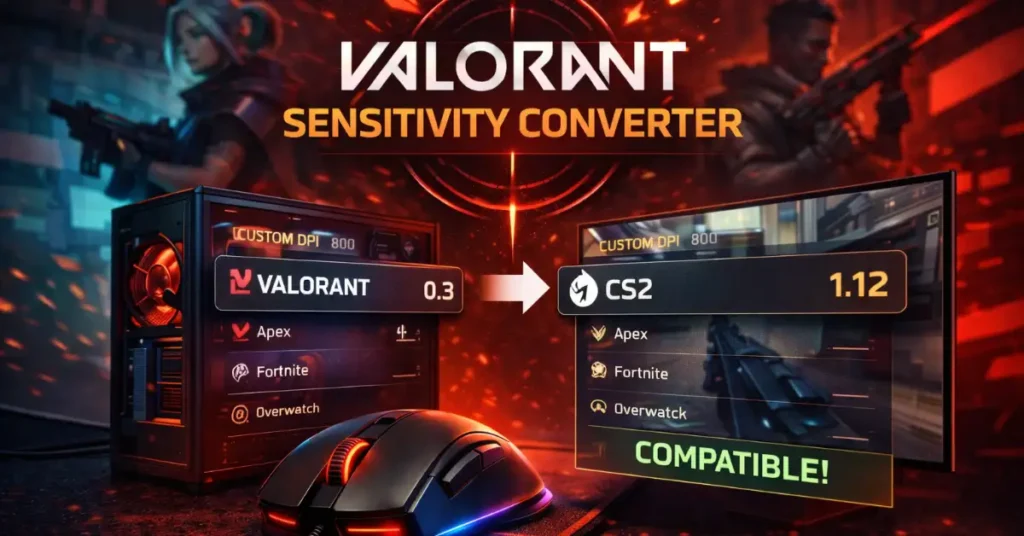
As a tactical shooter veteran, I built this specific converter using the True Yaw (Valorant uses a fixed yaw value of 0.07 ) Constant of Unreal Engine 4 (Valorant’s engine) to ensure 100% mathematical accuracy. Unlike generic converters that round up numbers, this tool preserves your raw input precision.
Shroud uses a sensitivity that translates almost perfectly between his main
games? Keeping your cm/360 identical allows you to switch games without “warming up” for hours.The Math Behind The Conversion (Why it works)
We don’t guess. We use the game engine’s internal “m_yaw” values. The m_yaw command dictates how many degrees your camera turns for every “dot” of mouse movement. By strictly matching this ratio, we guarantee that moving your mouse 20cm on the pad results in the exact same 180-degree turn in-game.
Here is exactly how we calculate your new sensitivity manually so you can verify our tool:
- CS2 / Source Engine: Uses a standard Yaw of
0.022. Valorant uses0.07.
Formula:CS2 Sens / 3.181818 = Valorant Sens. - Overwatch 2 / Apex Legends: Uses a Yaw of
0.0066.
Formula:OW Sens / 10.6 = Valorant Sens. - Fortnite: Uses a slider system, but standard configuration files use a multiplier
of roughly 0.5555 relative to UE4 standard.
Formula:Fortnite % / 12.601 = Valorant Sens. - Rainbow Six Siege: R6 is complex because it has a “MouseMultiplierUnit” config. Assuming default (0.02), the multiplier is roughly 1.2.
Troubleshooting: Why Your New Sens Might Feel “Off”
Even with perfect mathematical conversion, your new sensitivity might feel slightly different. This is normal. Here are the top 3 reasons why:
1. Field of View (FOV) Differences
CS2 plays at roughly 106 horizontal FOV (4:3 stretched is different). Overwatch is locked to 103. Valorant is also 103 but uses a different clamping method. This “Visual Speed” difference tricks your brain. Your mouse distance is correct, but the world moves past you at a different visual rate. Solution: Play Deathmatch for 30 minutes without changing settings. Your brain will adapt.
2. Mouse Acceleration & Windows Settings
Valorant uses “Raw Input” by default, bypassing Windows pointer settings. If you played your old game without Raw Input and had “Enhance Pointer Precision” on in Windows, our converter cannot account for that acceleration curve. Recommendation: Always turn OFF “Enhance Pointer Precision” in Windows Mouse Settings for consistent aim.
3. The “Heavy” vs. “Light” Feel
Valorant movement speed is slower than Apex Legends. A sensitivity that tracks a flying Octane in Apex comfortably might feel “shaky” when trying to hold a tight angle with an Operator in Valorant. This isn’t a conversion error; it’s a gameplay pacing difference.
Sensitivity Guide: Choosing Based on Your Role
If you aren’t sure if you should keep your old sensitivity or find a new one, consider your Agent Role. In Valorant, different roles benefit from different eDPI ranges:
- Duelists (Jett, Raze, Neon): Often prefer Medium-High Sensitivity (e.g., 280-400 eDPI). This allows for quick 180-degree turns, Satchel jumps, and clearing corners aggressively.
- Sentinels / Smokers (Cypher, Killjoy, Viper): Often prefer Low Sensitivity (e.g., 180-280 eDPI). Your job is to hold angles steadily and hit precise shots when enemies walk into your crosshair. Stability > Speed.
- Initiators (Sova, Fade): Fall in the middle. You need to aim utility precisely (Low sens) but also trade kills with your Duelist (High sens).
How to Use This Converter Effectively
- Input Your Main Game: Select the game where your aim feels “locked in” or where you have the most hours played.
- Type Your Sens: Be precise. If your sensitivity is 1.55, type 1.55, not just 1.5. Every decimal matters.
- Check Your DPI: This calculator assumes you keep your Mouse DPI constant (e.g., 800 DPI in CS2 -> 800 DPI in Valorant). If you change your mouse DPI switch, you must calculate eDPI instead.
Frequently Asked Questions (FAQ)
Why Trust BattlePooja Tools?
This tool is maintained by competitive FPS players who understand aim theory. We constantly verify our formulas against the latest game patches (Episode 8 Act 2 Verified). We don’t just host scripts; we use them to rank up.