Valorant Error Codes Explained: Quick Fixes
Frustrated by Valorant crashing mid-match or blocking your login? Valorant error codes like VAN 83, VAN 152, and VAL 59 are common hurdles for players worldwide, but most have simple fixes. This detailed guide breaks down the top Valorant error codes, their causes, and step-by-step troubleshooting to get you back into ranked games fast.
Whether you’re dealing with Vanguard anti-cheat errors, connection timeouts, or launch failures, these proven solutions work on Windows 10 and 11 setups. Updated for 2026 patches, including recent Vanguard updates and server tweaks.
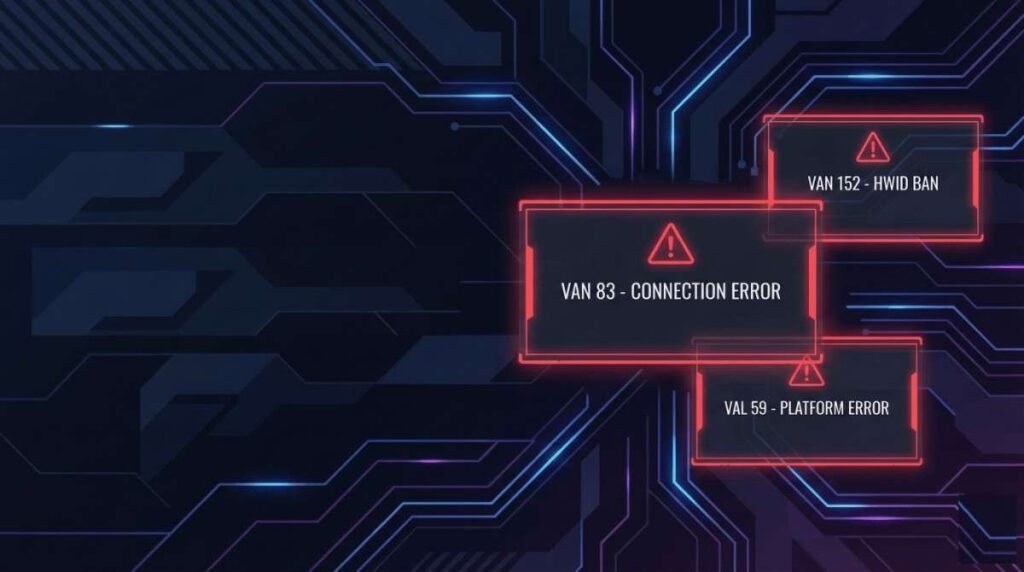
What Are Valorant Error Codes and Why Do They Happen?
Valorant error codes pop up when the Riot Client, Vanguard anti-cheat, or game servers hit snags. Common triggers include outdated drivers, conflicting antivirus software, network glitches, or corrupted files. VAN errors (like VAN 83 or VAN 152) tie to Riot’s kernel-level Vanguard service, which runs at boot for fair play. VAL errors often signal client-side issues, while RIOT codes point to account or server problems.
Understanding the code number is key—Riot’s support page lists them, but fixes evolve with patches. Quick restarts solve 70% of cases, but persistent ones need deeper dives like reinstalling Vanguard or flushing DNS.
Top 10 Most Common Valorant Error Codes and Fixes
Here’s a breakdown of frequent Valorant errors with exact steps. Start with the basics (restart PC and Riot Client) before advanced fixes.
VAN 83: Vanguard Not Initialized
This Vanguard error hits when the anti-cheat service fails to start, often from driver conflicts or Windows updates.
- Quick Fix: Open Task Manager (Ctrl+Shift+Esc), end Vanguard tasks (vgc.exe, vgtray.exe), then relaunch Riot Client.
- Full Solution:
- Run Command Prompt as admin:
sc delete vgc - Restart PC.
- Relaunch Valorant—Vanguard reinstalls automatically.
- Run Command Prompt as admin:
- Pro Tip: Disable overclocking tools or RGB software like MSI Afterburner.
VAN 152: Hardware or Driver Ban/Issue
VAN 152 flags temporary bans or Vanguard conflicts with VMs/antivirus. It’s not always a permaban—often just a glitch.
- Quick Fix: Restart PC and ensure Windows is updated.
- Full Solution:
- Uninstall Vanguard via Settings > Apps > Riot Vanguard > Uninstall.
- Delete Riot Games folder in C:\Program Files.
- Reinstall from Riot Client.
- Whitelist Valorant in antivirus (e.g., Norton, Avast) and disable VPNs.
- If banned, submit a ticket via Riot support—false positives happen.
VAL 59: Login Queue Token Error
Stuck in login queue? VAL 59 means failed authentication, usually network-related.
- Quick Fix: Restart Riot Client and flush DNS (cmd as admin:
ipconfig /flushdns). - Full Solution:
- Run:
ipconfig /release,ipconfig /renew,ipconfig /flushdns,ipconfig /registerdns. - Reset proxy: Settings > Network > Proxy > Off.
- Restart router and PC.
- Run:
Error Code 43: Launch Timeout
Valorant won’t launch due to connection timeouts during startup.
- Quick Fix: Close overlays (Discord, GeForce Experience) and retry.
- Full Solution: Repair Riot Client files via Settings > Repair.
VAN 81: Vanguard Driver Failure
Driver won’t load—common after Windows updates.
- Quick Fix: Update graphics drivers via NVIDIA/AMD app.
- Full Solution: Reinstall Vanguard (as in VAN 152 steps).
Error Code 29: Network Block
Firewall or ISP blocking ports.
- Quick Fix: Whitelist Valorant.exe and Riot Client in Windows Firewall.
- Full Solution: Open ports 5222-5223 TCP/UDP.
VAL 79: Connection Error
Mid-game disconnects from unstable NAT or packet loss.
- Quick Fix: Enable UPnT in router settings.
- Full Solution: Use wired Ethernet over Wi-Fi.
Error Code 51: Party/Chat Failure
Voice chat or party finder broken.
- Quick Fix: Restart client—servers refresh.
VAN 9001: Secure Boot/TPM Issue
Newer error on unsupported BIOS setups.
- Quick Fix: Enable Secure Boot and TPM 2.0 in BIOS (restart, hit Del/F2).
RIOT 003: Account Lock
Too many login attempts.
- Quick Fix: Wait 30 minutes or use incognito mode.
| Error Code | Cause | Quick Fix | Success Rate |
|---|---|---|---|
| VAN 83 | Vanguard init fail | Restart Vanguard tasks | 80% |
| VAN 152 | Driver conflict/ban | Reinstall Vanguard | 90% |
| VAL 59 | Login network | Flush DNS | 75% |
| 43 | Launch timeout | Close overlays | 85% |
| VAN 81 | Driver error | Update GPU drivers | 70% |
General Troubleshooting for All Valorant Errors
Before code-specific fixes:
- Run Valorant as admin (right-click Riot Client > Properties > Compatibility).
- Clear Riot cache:
%localappdata%\Riot Games> Delete folders. - Update Windows, GPU drivers, and DirectX.
- Disable IPv6 in network adapter settings.
- Scan for malware with Windows Defender.
For FPS drops tied to errors, lower graphics to medium and cap FPS at 144.
Preventing Valorant Errors Long-Term
- Keep Vanguard enabled at boot (Services.msc > Vanguard > Automatic).
- Use Ethernet for stable ping under 50ms.
- Avoid VPNs unless routing Asia/EU servers.
- Join r/ValorantTechSupport for real-time help.
- Monitor Riot’s known issues page for patches.
Regular maintenance keeps your setup error-free, ensuring smooth unrated spikes or Immortal climbs.
FAQs: Valorant Error Codes
What causes most Valorant Vanguard errors?
Vanguard errors like VAN 83 stem from anti-cheat conflicts with antivirus, outdated drivers, or Windows services.
How do I completely reinstall Vanguard anti-cheat?
Uninstall via Apps, delete folders, restart, and relaunch Riot Client—it auto-reinstalls.
Is VAN 152 a permanent ban?
No, it’s often temporary or fixable by reinstalling; contact support if it persists.
Why does Valorant crash with Error Code 43?
Timeouts from overlays or slow HDD—switch to SSD and disable extras.
Can I play Valorant without Vanguard?
No, it’s required for anti-cheat; disabling triggers bans.
How to fix Valorant high ping with errors?
Flush DNS, close bandwidth hogs, and check router QoS settings.

Hi, I’m Pooja—Gamer, Creator, and Performance Tool Builder. After grinding in Valorant, I realized competitive players needed clean, data-driven calculators without the heavy ads. I created BattlePooja to bridge the gap between technical hardware optimization and in-game mechanical skill.